Best Drawing Tablets for Digital Art
As an Amazon Associate, I earn from qualifying purchases. Some links may earn us a commission at no extra cost to you.
The best drawing tablet depends on whether you want to draw directly on a screen or prefer a traditional pen tablet. These six picks cover both styles, from compact beginner models to larger professional pen displays.
Top Picks
1. XPPen Artist 15.6 Pro V2 — Best Overall
The Artist 15.6 Pro V2 combines a full-laminated anti-glare display, 16K pen support, an adjustable stand, and eight shortcut keys.
Why it wins: It offers a comfortable screen size and a well-established track record without jumping into premium 4K pricing.
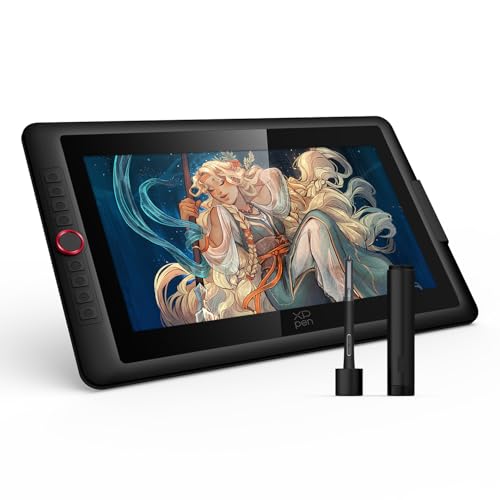
- PLEASE NOTE: The XPPen Artist 15.6 Pro V2 needs to connect with a computer to use. You need to use...
- 16K Pressure Sensitive: XPPen Artist 15.6 Pro V2 drawing tablet introducing X3 Pro smart chip...
- Easy Control, One Red Dial for All: The innovative Red Dial interface is designed for a smooth...
Pros
- 15.6-inch pen display
- Full-laminated anti-glare glass
- 16K pen support
- Adjustable stand
- Eight shortcut keys
Cons
- Requires another device to run drawing software
- Takes more desk space than compact tablets
Trade-offs / Who should skip
Best for artists wanting a versatile screen tablet for regular digital-art work. Skip it if portability matters more than screen size.
2. VEIKK VK1200 V2 — Best Budget Pen Display
The VK1200 V2 uses an 11.6-inch full-laminated anti-glare display with 8192 pressure levels, six shortcut keys, and two battery-free pens.
Why it wins: It gives beginners a genuine draw-on-screen experience at a considerably more approachable price.

- Full-Laminated Technology & Anti-Glare Glass:The VEIKK VK1200 V2 drawing tablet features advanced...
- Tilt Function & 8192-Level Pressure-Sensitive Battery-Free Pen:This drawing monitor includes two...
- Easy Setup:The VK1200 V2 drawing tablet with screen supports single-cable connectivity via a...
Pros
- Full-laminated screen
- Compact 11.6-inch size
- Six shortcut keys
- Two battery-free pens
- Strong buyer history
Cons
- Smaller workspace
- Requires a computer connection
Trade-offs / Who should skip
Best for beginners and smaller desks. Skip it if you regularly work on large illustrations with lots of panels open.
3. Viewedge 15.6-Inch Touch Drawing Tablet — Best Touch-Screen Option
The Viewedge combines a 15.6-inch FHD display with 16K pen support, touch controls, a paper-like surface, USB-C connectivity, and listed 120% sRGB coverage.
Why it wins: Touch control makes navigation and canvas adjustment more convenient than on many traditional pen displays.

- PLEASE NOTE: PDT160 Pen Display is not a standalone device and must be connected to a compatible...
- 15.6" FHD DISPLAY WITH PAPER-LIKE FEEL: Enjoy a spacious 1920 × 1080 FHD display with a matte...
- VIBRANT COLOR FOR CREATIVE WORK: With 120% sRGB color gamut and 16.7 million colors, the display...
Pros
- 15.6-inch FHD screen
- Touch control
- 16K battery-free pen
- Paper-like surface
- USB-C connection
Cons
- Smaller review history
- FHD rather than 2.5K or 4K
Trade-offs / Who should skip
Best for artists who value touch navigation. Skip it if maximum resolution is your main priority.
4. DIGIDRAW Turing Pro 19 — Best 4K Pen Display
The Turing Pro 19 uses an 18.4-inch 4K UHD display with 16K pressure support, factory-calibrated color, touch input, an anti-glare surface, and a shortcut remote.
Why it wins: It has the strongest display specifications in this lineup for detail-heavy illustration and color-focused work.

- 18.4-inch 4K Ultra HD Large Screen for Immersive & Focused Creation:The 18.4-inch 4K ultra-large...
- Professional Color Accuracy Eliminates Color Difference & Rework:Factory-calibrated to ΔE...
- Smooth Touch Control + Professional Pressure-Sensitive Stylus for Natural Hand-Painted...
Pros
- 4K UHD display
- 18.4-inch workspace
- 16K pressure support
- 10-point touch
- Factory-calibrated color
- Shortcut remote
Cons
- Expensive
- Very small review base
- Requires substantial desk space
Trade-offs / Who should skip
Best for experienced artists prioritizing resolution and color. Skip it if you want proven long-term buyer history or a lower-cost setup.
5. XENCELABS Drawing Tablet Bundle — Best Professional Non-Screen Tablet
The XENCELABS bundle uses a large ultrathin pen tablet with two battery-free styluses and a customizable Quick Keys controller.
Why it wins: It provides a more traditional professional workflow for artists who prefer looking at their monitor rather than drawing directly on a display.

- Best In Class Drawing Performance:The inclusion of a 3G initial activation force and studio-grade...
- Professional Drawing Tablet: Our Pen Tablet was co-designed with the input of industry leading...
- Curved Gentle Slope: The Xencelabs Pen Tablet is designed with a curved slope, which reduces...
Pros
- Two included styluses
- 8192 pressure levels
- Customizable Quick Keys
- Large working area
- Windows, Mac, and Linux support
Cons
- No built-in screen
- Requires hand-eye adjustment for new users
Trade-offs / Who should skip
Best for experienced artists who prefer a conventional pen-tablet workflow. Skip it if drawing directly on the image is essential.
6. GAOMON S620 — Best Budget Non-Screen Tablet
The GAOMON S620 is a compact 6.5 x 4-inch pen tablet with 8192 pressure levels, four customizable hotkeys, and a battery-free stylus.
Why it wins: It has an unusually deep review history for such an affordable drawing tablet.
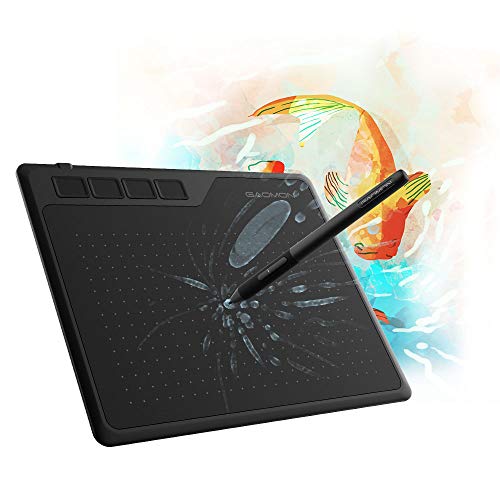
- 【FOR DIGITAL ART & CREATION】-- Perfect for beginner who starts digital drawing, sketching...
- 【PASSIVE PEN】--Battery-free pen cuts the inconveneince of charging the pen. 【8192 HIGH LEVEL...
- 【COMPATIBILITY OR APPLICATION】-- It compatible with Windows 7 or later and macOS 10.12 or later...
Pros
- Very affordable
- 8192 pressure levels
- Battery-free stylus
- Four hotkeys
- Compact and portable
Cons
- No display
- Small drawing area
Trade-offs / Who should skip
Best for beginners, students, and portable setups. Skip it if you want to draw directly on a screen or need a large active area.
Quick Compare
- Best overall: XPPen Artist 15.6 Pro V2
- Best budget pen display: VEIKK VK1200 V2
- Best touch-screen option: Viewedge 15.6
- Best 4K pen display: DIGIDRAW Turing Pro 19
- Best professional non-screen tablet: XENCELABS
- Best budget non-screen tablet: GAOMON S620
Final Verdict
The XPPen Artist 15.6 Pro V2 is the strongest all-around choice for most artists who want to draw directly on a screen.
The VEIKK VK1200 V2 is better for budget-conscious beginners, while Viewedge adds touch controls and DIGIDRAW provides a premium 4K workspace.
For artists who prefer traditional pen tablets, XENCELABS is the premium option and GAOMON S620 is the affordable alternative.
As an Amazon Associate, I earn from qualifying purchases.